Removing redundant keyframes
Sometimes animations contain more keyframes than necessary. Kanzi provides an easy way to optimize animation data, which results in a significantly smaller number of keyframes, but without losing the animation precision almost at all. For example, in the animation below there are too many keyframes than are needed for most purposes.
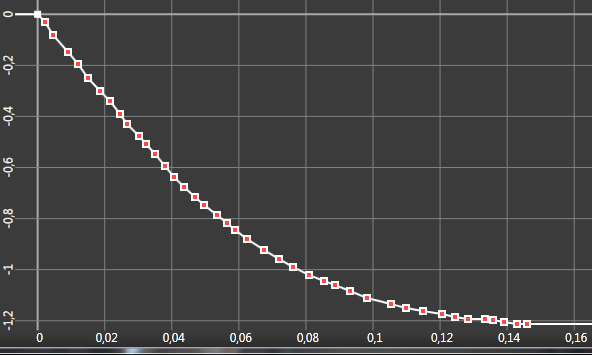
To remove redundant keyframes:
- In the Library select Animations > Animation Clips and select your animation clip.
- Right-click the animation you want to optimize and select Optimize Animations.
- In the Threshold value dialog box enter the threshold value for the keyframe removal and click OK.
Value 0.1 is a good starting point. This removes all keyframes with a delta value smaller than 0.1. Try different values for your animation, as another value can optimize your animation even more.
The following figure shows the example animation after removing all keyframes with a delta value smaller than 0.1.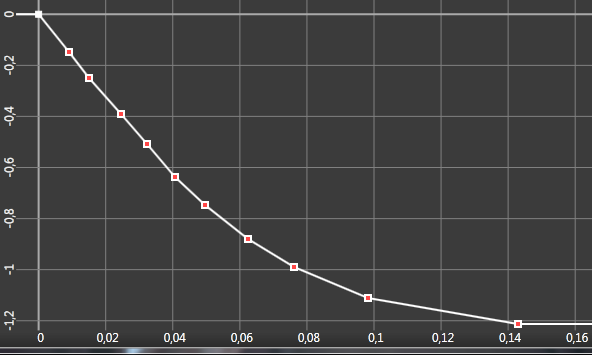
See also
Removing redundant animation data channels
Measuring the performance of your Kanzi application
Best practices
Open topic with navigation